 emdeplam
video · text and sound
Add moving text, sound and a voiceover to a video on iPhone
A title that pops in right on time, a little pop as the scene changes, your voice telling the story softly over the music: small touches like these make a short video feel so much more yours. In emdeplam's video Studio you add moving text, sound and a voiceover right on your iPhone, offline.
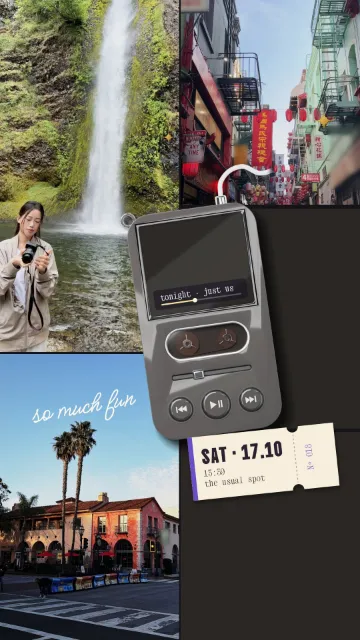
Open your video in the Studio
- On emdeplam's Home, tap the Video tile.
- Choose Edit video to bring in a video from your library, or Record video to shoot in takes.
- The Studio opens with the bar Clip · Collage · Text · Sticker · Sound · Frame · Color. This guide uses two of them: Text and Sound.
Add text to a video on iPhone
Tap Text. There are two ways to add a line:
- Tap Add text, or one of the four suggested fonts right on the bar.
- Or tap the video itself, exactly where you want the words. The keyboard comes up and the text sits right there.
While you type, the fonts and ink colors sit just above the keyboard. Tap Done when you're finished. Drag the text to move it, and drag its corner to resize and turn it. Style gives you Plain, Box (text on a block of color) or Outline, plus the font and ink. A video holds up to 12 texts.
Make it move: In and Out
Tap a text you've added and the bar shows Edit · Style · Motion · Whole video · Delete. Tap Motion, choose In (as the text appears) or Out (as it leaves), then one of 7 moves:
- Fade: a soft fade.
- Pop: springs up with a little bounce, great for a title.
- Slide: slides into the frame.
- Type: letters appear as if typed, lovely for a story line.
- Bounce: drops in and bounces like a ball.
- Blur: from blurry to sharp, nice for the last scene.
- Zoom: grows into place.
Pick a length of 0.4, 0.7 or 1.2 seconds, or None to keep the text still. Each tap replays the move once so you can see it.
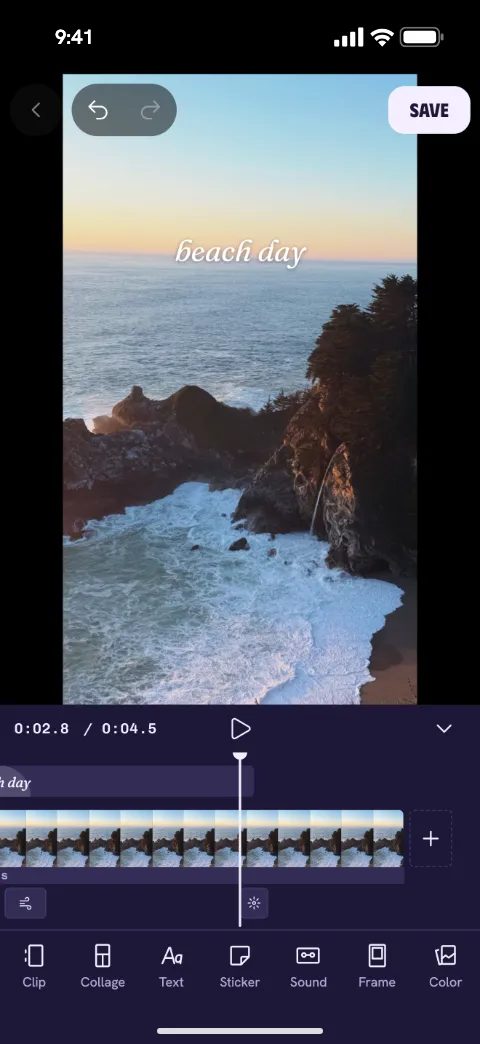
Choose when the text shows
Every text is a bar above the clip strip. Drag the bar to move it, and drag its ends to choose when the text comes and goes, matched to a scene or a beat in the music. Want it on screen the whole time, like the trip's name or a date? Tap Whole video.
Tip: a short video only needs a title at the start and one closing line at the end. Several texts moving at once gets busy, so let one line move at a time.
Add sound to a video: music and 10 sound effects
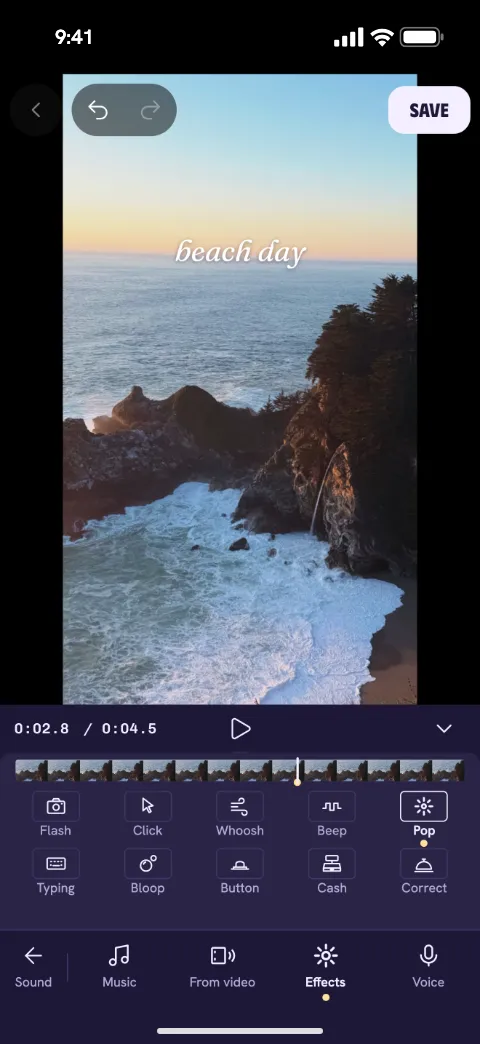
Tap Sound. The bar has Music, From video, Effects and Voice.
- Music: pick a music file on your phone. Only use music you have the rights to. Tap the music bar for Volume (which part of the song plays, and the levels of the music and the original sound), Fade, Beat to mark beats, Swap or Delete.
- From video: use the sound of another video as the background.
- Effects: 10 sounds we made ourselves: Flash, Click, Whoosh, Beep, Pop, Typing, Bloop, Button, Cash and Correct. Tap one to hear it and it drops in at the playhead. Tap a placed sound for its Volume, to Swap it or to Delete it.
Effects work best paired with text: Typing with a Type text, Pop with Pop, Whoosh as a text Slides in.
Record a voiceover with Voice
- In Sound, move the playhead to where you want to start talking, then tap Voice. The first time, the app asks for the microphone.
- A 3, 2, 1 count, then the video plays from the playhead while you talk, so your words match the picture.
- Tap to stop. The take sits on the timeline; hold and drag it like any other sound.
- Tap the take to Listen, Redo it, set its Volume or Delete it.
Turn on Lower music and the music and original sound dip whenever you talk, then come back up when you stop. A video holds up to 10 takes. Tip: record in a quiet room, hold the phone close, and speak a little slower than usual.
Your voice and videos stay on your phone
The microphone is only asked for the first time you tap Voice, and only used in the Studio; the Photobooth camera is always muted. Your takes, music and videos stay on your phone. Nothing is uploaded, there is no account and no data collected. Want several videos in one frame? Read how to play 2 or 3 videos side by side.
Quick answers
Which text moves are there?
Seven, for the way in and the way out: Fade, Pop, Slide, Type, Bounce, Blur and Zoom, at 0.4, 0.7 or 1.2 seconds.
Can I add any music?
You add music from a file on your phone or take the sound of another video. Only use music you have the rights to. The 10 sound effects are our own, so use them freely.
Does a voiceover send my voice anywhere?
No. Your takes stay on your phone with the video. emdeplam has no account and collects no data.
Is it free, and is it on Android?
Every feature is free for now, with no ads. The video Studio comes to Android on Google Play soon.
Get emdeplam, open Video and add your first moving text.
5.0 · 3,500+ downloads on the App Store