 emdeplam
video · video collage
How to play 2 or 3 videos at once in one story frame
A waterfall on one side and you laughing on the other, or three angles of the same trip in one story. That isn't joining videos, where one ends and the next begins. It's a video collage: the videos play at the same time, side by side. In emdeplam, the Collage tool does it right on your iPhone, offline.

Side by side is not the same as joining
Both get called "combining videos", but they give very different results:
- Joining: clips play one after another on the timeline. In emdeplam's Studio you add clips with the + after the clip strip, and pick None, Flash or Fade where they meet.
- Side by side: 2 or 3 videos share one frame and play together, like a split screen. That's the Collage tool.
You can use both: a collage is one clip on the timeline, so you can still join ordinary clips before and after it.
Pick a layout: split screen or three boxes
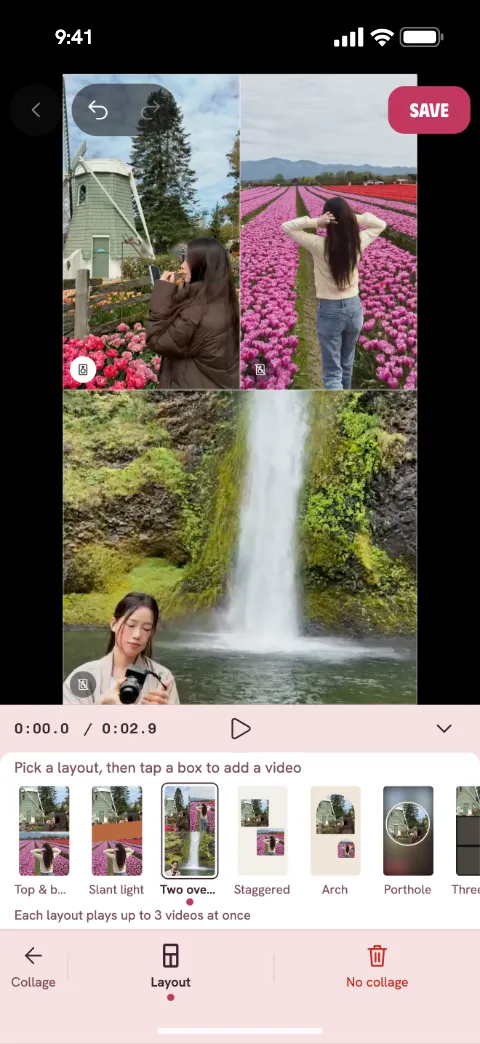
Collage has 8 story layouts at 9:16, each with boxes big enough for video to read well:
- Top & bottom: two videos stacked, the classic split screen.
- Slant light: the same split with a streak of light.
- Two over one: two small boxes on top, one big box below, the nicest way to put 3 videos into 1.
- Staggered: two rounded video cards, offset on a backdrop.
- Arch: one big arched box and a small one for a detail.
- Porthole: one video in a circle, on a blurred ground taken from the video itself.
- Three slices: one video cut into three slices, each zoomed differently.
- Close-up: one video full frame with a small box zoomed in on one spot.
Step 1: open the Studio with your first video
- On emdeplam's Home, tap the Video tile.
- Choose Edit video to bring in a video from your library, or Record video to shoot a new one.
- The Studio opens with your video on the timeline. The bar below has Clip · Collage · Text · Sticker · Sound · Frame · Color.
If a video is still in iCloud, the app needs a connection to download it the first time. After that, everything works offline.
Step 2: pick a layout and fill each box
- Tap Collage, right after Clip. The tray says Pick a layout, then tap a box to add a video.
- Tap a layout. The video on screen becomes the first box.
- Tap the + in an empty box to choose another video from your library. Do the same for the third box if the layout has one.
- To change the layout, tap Layout on the Collage bar. To go back to a single video, tap No collage.
Every change is one undo step, so experiment freely.
Step 3: choose the part of each video that plays
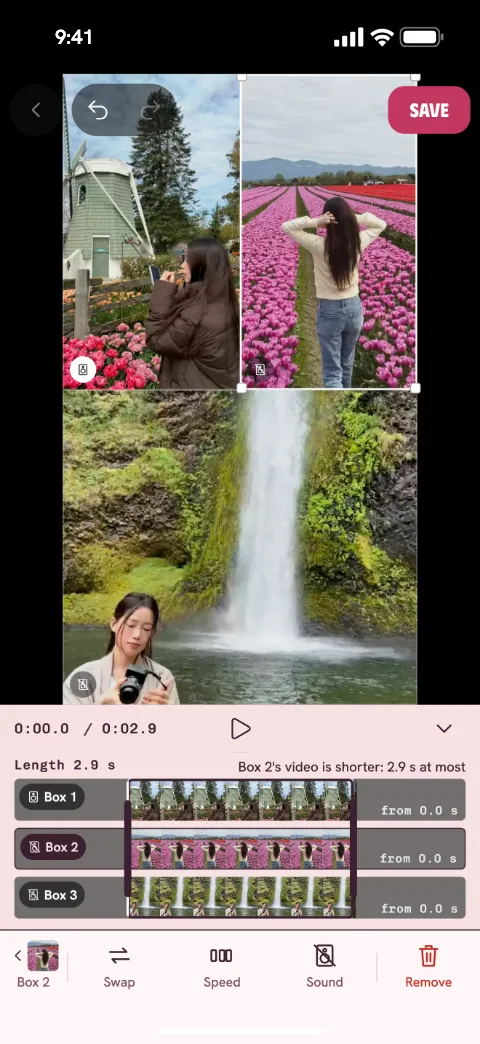
With Collage open, the timeline turns into lanes, one per box, labelled Box 1, Box 2, Box 3. One window runs down every lane: that is the part that plays.
- Drag a lane to slide that video under the window and land on the moment you want. The "from 1.0 s" readout shows where it starts.
- Drag the window's ends to set the length of the whole collage. The header shows it, for example Length 3.0 s.
- A collage is at most as long as its shortest video, and the app tells you which one is holding it, like "Box 3's video is shorter: 3.0 s at most".
Tip: line up the main action of each video, a wave, a laugh, a crashing wave, on the same beat.
Step 4: adjust each box and choose the sound
Tap a video in the frame. Its box gets a white outline with corner handles, and the bar below switches to that box's own tools:
- Drag to move the video inside its box, pinch to zoom. Centre puts it back.
- Swap: replace it with another video and keep the layout.
- Speed: applies to the whole collage, because the boxes always play in step.
- Sound: set the level or mute it, and Sound from this box to choose which box you hear. A collage plays one box's sound; the others stay quiet.
- Remove: empties the box so you can pick another video.
Step 5: add text, music and color, then save
A collage works with every other Studio tool. Color puts one film look on all three boxes so they match. Text adds a moving line, Sticker and Frame dress up the story, and Sound adds music, sound effects or your voice. When you're done, tap Save. More in how to add moving text and a voiceover.
Playing several videos at once makes your phone work harder. If it gets warm, the app rests some boxes and only the one you hear keeps playing until it cools down. Leave the Studio or the app and every video stops completely; nothing runs in the background.
Quick answers
How many videos can play at once?
Up to 3 in one layout. You can still join ordinary clips before and after the collage, like any video.
How long can a collage be?
As long as the part you choose, up to the length of the shortest video in it. Drag the ends of the window on the lanes to change it.
Where does the sound come from?
From one box, the first by default. Pick a box, tap Sound, then Sound from this box to switch. You can also add music, sound effects or your voice.
Do I need a connection or an account? Is it on Android?
No connection, no account, nothing uploaded, and every feature is free for now. Video collages come to Android on Google Play soon.
Get emdeplam, open Video and make your first video collage.
5.0 · 3,500+ downloads on the App Store